Thursday, August 10, 2017

Finger Paint With iOS 11 and ARKit


We’ve put together a collection of demonstrations showcasing the power of iOS 11 and ARKit, and, since then, we’ve even seen the software used to enhance navigation instructions while walking, and what a popular music video from A-Ha looks like.
But for those who want to get really creative when ARKit launches, there will be at least one method to do that. The latest demonstration, which was initially published to the site Toptal, shows what it will look like to fingerprint in augmented reality, and then turn those creations into digital 3D models. iMyFone D-Back iOS Data Recovery Get Back Lost Files on iPhone:
Thanks to software in iOS 11 called Vision, and ARKit, the software makes it work like the person creating the art is holding a pen, and then the digital ink is displayed as realistically as possible. Once you’ve finished drawing what you want, the creator will be able to “pull” the creation into a 3D space, effectively making a 3D object.
“One of the cool libraries that Apple introduced in iOS 11 is Vision Framework. It provides some computer vision techniques in a pretty handy and efficient way. In particular, we are going to use the object tracking technique. Object tracking works as follows: First, we provide it with an image and coordinates of a square within the image boundaries for the object we want to track. After that we call some function to initialize tracking. Finally, we feed in a new image in which the position of that object changed and the analysis result of the previous operation. Given that, it will return for us the object’s new location.”

You can find the full write-up of what it took to put the demonstration together through the source link below. You can watch it in action in the video as well.

How To Solve Forgetting Apple Watch Password 2017?

Before getting started, you should note that although both these methods involve removing the passcode from the smartwatch, the process will cause the data loss but in reality. But you won’t lose anything as everything can be restored from your last backup 
Solutions 1: Reset Apple Watch On Paired iPhone
  1. Put your Apple Watch and its paired iPhone close each other to keep the connectivity. After that, launch the Apple Watch app on your iPhone. 
    Tips:
    Must read:icloud activation lock removal
  2. Move to the My Watch
  3. Head to General -> Reset.
  4. Now choose the ‘Erase Apple Watch Content and Settings’ and tap on Confirm when being prompted. Moreover, you are also required to enter your Apple ID and Password.
  5. Finally wait for the process to complete.
Now, you simply set up your Smart Watch again and use it as usual. If you’d like, you can restore your last backup.
Also read: How to utilize theater mode on the Apple Watch
Solutions 2: Reset Apple Watch Without iPhone
To fix forgetting Apple Watch passcode, there is another method for you
  1. Make sure your Apple Watch is connected to a dock charger before getting started, so that the battery won’t run out midway.
  2. Now press and hold the side button until the Power Off Slider line displays.
  3. Tap and hold the Power Off Slider and after a few seconds, lift your finger.
  4. The ‘Erase all content and settings’ option will now appear, tap on it.
  5. Wait for the erasing process to complete. Before using your watch as usual, you can restore it from the previous backup if you want to.
Sponsor ads:
Gihosoft iPhone Data Recovery Free
Free iPhone Data Recovery Software for Windows/Mac
Recover up to 12+ types of files, including contacts, SMS, photos, WhatsApp, Viber, notes, etc.
Restore lost data from iOS devices directly or from iTunes and iCloud backup
Recover iPhone data lost due to iOS upgrade/jailbreak, accidental deletion, device lost or broken
Support all the latest iPhone, iPad and iPod Touch
Both Free and Pro version.
If you lost data after you updated to a new iPhone, you can always use Gihosoft iPhone Data Recovery to get the data back from the old iPhone or backup.You may also like: iphonerecovery.com
If you use android phones, please choose Gihosoft Android Data Recovery.
With Gihosoft Android Data Recovery, no longer afraid of data loss!

Tuesday, August 8, 2017

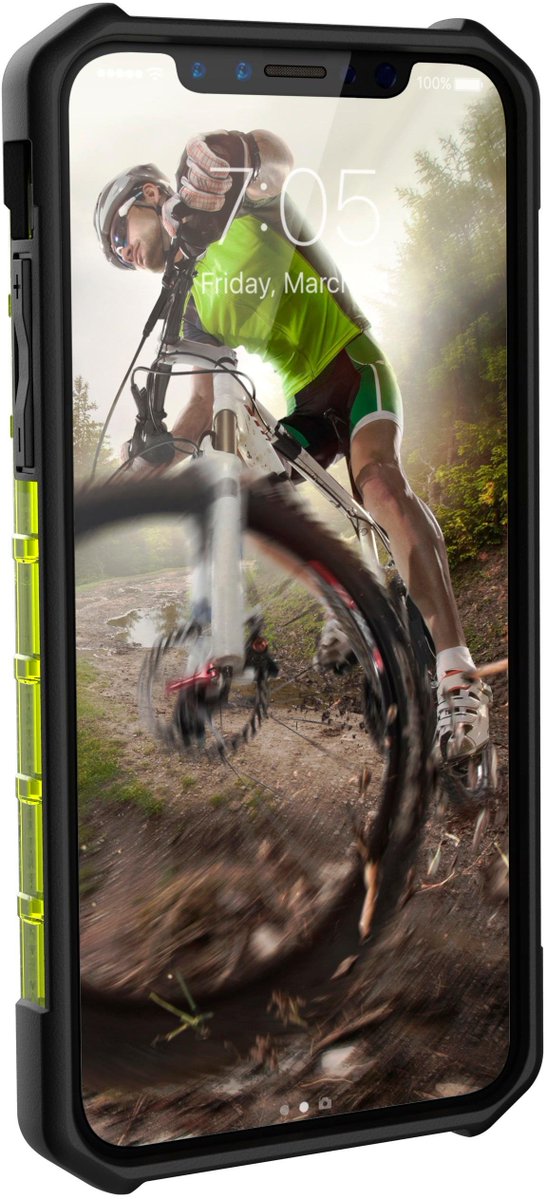
This image of iPhone will bring big smile on your face

Apple iPhone 8 is expected to make a debut in September. Evan Blass, a well-known blogger who established a reputation by accurately leaking images of new cellphones, says the image above is the upcoming Apple iPhone 8.


In the leaked image, the iPhone 8 has been shown encased in a smartphone cover with a nearly bezel-less design and a distinct top notch - expected to feature a range of sensors including the 3D front camera. 

Must Read: iOS 11 beta 4 reveals one of the cool features for iPhone and iPad users

The design on the display is almost identical to some of the earlier leaks and is quite likely to be the final design on the iPhone 8 as well. While Blass didn't share the name of the case-maker, 9To5Mac points out that the case in the leaked render resembles the ones made by UAG.


Considering the fact, that the image is leaked from the smartphone case vendor, which cannot be trusted fully for the design, but it appears to look almost exactly like other designs that have spilled out in recent weeks and months. It also aligns with an image that appeared in code that powers Apple's new HomePod speaker, showing a smartphone with an identical front display. Finally, Blass' accurate track record adds a bit of legitimacy to the image.

Must read:Gihosoft Free iPhone Data Recovery:https://www.gihosoft.com/iphone-data-recovery-free.html

According to Apple analyst Ming Chi-Kuo of KGI Securities, Apple will go for a “two-step fingerprint and facial recognition system” for iPhone 8. The front camera in iPhone 8 is said to support 3D facial recognition, and details of this upcoming feature were shared in a Bloomberg report by Mark Gurman. The highlight of iPhone 8 will be dual rear cameras, with LED flash tucked in between the two lenses. This kind of a setup is supposed to help with augmented reality (AR) features.

Read More: These tips will help your iPhone battery last for more than a day

As per the recent reports, the phone is rumored to cost between $1,200 and $1,400 (£920 to £1,075), significantly more pricey than previous generations of the device. Last year's iPhone 7 cost $969 for the most expensive model.


Apple is expected to unveil three new iPhones next month; a 7s and 7s Plus that largely take after last year's models and a premium model with the new design and technology.

iOS 11 refines the features introduced in iOS 10

On the iPhone, iOS 11 refines the features introduced in iOS 10. Here are the main features:
  • The Lock screen and Notification Center are merged so you can now swipe up on the Lock screen to view all your notifications, right there.

    Must read:Gihosoft Free iPhone Data Recovery:https://www.gihosoft.com/iphone-data-recovery-free.html
  • Control Center is back to being just one screen. There are now tiles that you can 3D Touch to expand to view more information.
  • Apple has redesigned the iMessage app drawer to make it easier to use.
  • You can now use Apple Pay to pay other Apple Pay users, right from the Messages app.
  • A potential end-all for syncing frustrations – iMessage, Siri, and Photos data will now sync between all your devices using iCloud.
  • Siri now has a more natural voice, supports translation and gets a small visual update. Siri also supports list and QR code apps.
  • App Store gets a big new redesign to make it look more like Apple Music. There are new tabs for Today, Apps and Games view.
  • Do not Disturb While Driving feature automatically disables all notifications when you’re driving.
  • When you take a screenshot, you’ll now get a little preview of it in the bottom-left corner. Tap on it and you’ll be able to mark up the screenshot before saving it or sharing with anyone.
  • Files app replaces iCloud Drive app.
To see how all these new features work, read our in-depth coverage of the best iOS 11 features for iPhone.

How to Run iPhone Battery Diagnostics on MAC ?

How to Run iPhone Battery Diagnostics on MAC ?

Steps to Install

Step1: Firstly, you have to download coconut battery. For this, you must prefer coconutBattery version 3.4. Take into consideration that it only works on Mac OS machines, in case you are running Windows then you have to get a Mac for this job.
Step2: Scroll down on the page until you reach to the “Download 3.4” link and if updates have been implemented. If current version doesn’t support your needs, the web page will offer some older compatible versions with older operating systems.
Step3: Your file i.e.”.zip” is of 8.5MB at the time of writing and would take no time to install. One of the best features of coconutBattery is its universal ease of use and lightness, i.e.; it will not stick to your CPU. This app will also show your battery diagnostics on your Mac too.

Steps for running the app:

Step1: Double click on the file that you have downloaded to open it.
Step2: If the application is not launched at that moment, you need to click on the “Open” present on the warning window.
Step3: When it is opened, prefer coconutBattery to search for updates automatically. This will help you when new features are added on, and you must take it.

Steps for viewing data

Step1: With coconutBattery opened, you will be presented with stats about both your Mac that is running the application and stats about Mac’s battery, if it has one.


Run iPhone Battery Diagnostics on Mac

Step2: To view stats about your iOS device, select “iOS Device” from the menu bar.


Run iPhone Battery Diagnostics on Mac

Step3: All battery details will be displayed at the bottom of the screen. For further details such as age, serial number, and processor, you can select “Device Details.”


Run iPhone Battery Diagnostics on Mac

Deciphering Data

Charge Capacity: Power is displayed as milliamp hours or mAh. In cases of 6s, it can store 1715mAh of power, but use has declined to a maximum charge of 1311mAh or 76.4%. This decline happens from a device of its age like 477 days old but if your device’s maximum is less than the design capacity, then prefer to exchange your battery.
Load cycles and Usage: One load cycle is one full discharge followed b one full charge i.e., from 0% to 100%. So if you have 50% charge then use up to 50%, i.e., one load cycle. On an average, you can go up to 1000 load cycles before the battery’s capacity falls behind the design capacity.
Also Read: How to Make Your Android Look like an iPhone (Without Root)
If the battery looks ship shape, it probably is. If it is not, then make a Genius Bar appointment and get it checked out. If possible, visit an Apple authorized service provider for any hardware repair as the third party will void your warranty. For any battery replacement at an Apple Store, an expert will run a similar application to coconutBattery before going through with repair to verify the issue.Sponsor ads:
Gihosoft Free iPhone Data Recovery:iphonerecovery.com
Free iPhone Data Recovery Software for Windows/Mac
Recover up to 12+ types of files, including contacts, SMS, photos, WhatsApp, Viber, notes, etc.
Restore lost data from iOS devices directly or from iTunes and iCloud backup
Recover iPhone data lost due to iOS upgrade/jailbreak, accidental deletion, device lost or broken
Support all the latest iPhone, iPad and iPod Touch
Both Free and Pro version.
If you lost data after you updated to a new iPhone, you can always use Gihosoft iPhone Data Recovery to get the data back from the old iPhone or backup.
Worth reading:download youtube 1080p

How To Effectively Use Your Ipad ?

What can you say about an iPad that has not been said already? Many people think it is a toy, but others know it is a life-enhancing tool. If you think of it as a tool that you wish you could use better, the tips in this article can help you.
Keep your bill under control by tracking the amount you spend on iPad apps. It’s very common for iPad users to run up large bills buying music and apps. So, always be aware of how much you are spending so that it doesn’t get out of control.
Do you get perturbed when your iPad wants you to go on the WiFi available? Go to settings and turn this off. Select “Wi-Fi” and then turn off the notification option if you want them to disappear.
Do you get irked each time you get a message from your iPad wanting to know if you want to join a new wifi network that it has just picked up? By going to settings, you may switch this feature off. Select Wi-Fi and then turn the Ask option off.
Is that app you just launched making too much noise? You can quickly turn the sound down by holding down the “vol -” button until it is muted. If you use the mute button a lot, you can configure the lock orientation button to function as a mute button.
Make sure you check out your currently running apps. A lot of the apps on your tablet can keep running while you work on other things. You can easily see the running apps by double clicking the home button. The lower bar will display the currently active apps and some brief information. When you are finished, swipe down to make the bar disappear.
Wi-Fi notifications can quickly become irritating, so change them in the settings application. Go to Settings and opt for the Ask to Join Network option. Turn that off, and you won’t see invitations any more.
Most tablet users do not enjoy typing on their device, even though they eventually get used to it. However, the iPad does have a button for speech dictation. Push Home twice and then hit the microphone. Once you finish, hit that microphone once more and you will see in text what you have spoken aloud.
You know your iPad has a tiny camera image in the bottom left of the screen, but you do not actually have to tap this to view the most recently taken video or picture. You can just swipe right with your finger, and you will see the last picture or video you took. To view past pictures, swipe to the left.
For manual lovers, you must download the manual in order to read it. Most Apple products come with downloadable manuals.
Some people take time to adjust to typing on an iPad. A simple way to enter text is to use the speech dictation function. Just push the home button twice and then tap on the little microphone that you see. When you’re done speaking, tap the Microphone again to turn your dictation into text.
You can access your Google Calendar in the Calendar app on the iPad by choosing, “Mail,” “Contacts,” and “Calendars” under the Settings menu. Go to Add An Account and tap Other. Then click “Add CalDAV” and use your Google log-in. Once done, click the calendar app. Everything you needed should be visible.
You view two lines by default when you see new emails. This can often help to see content before opening the email. You can select mail from your settings. From Mail, choose Contacts, then go to Calendar where you can change the options to preview mail.
Just open new pages within a new tab to maintain the previous one. Instead of tapping a link quickly, hold it until a menu appears. This menu will give you the option of opening the URL with a new tab.
Access your Google calendar easily by adding it to your contacts on the mail tab. Hit Add An Account and hit Other. Tap the Add CalDAV Account icon and put in your Google information. You can then exit the settings and access the calender through the app. You should now be all set.
Do you get annoyed by the battery charge icon on your iPad’s screen? If so, then it’s possible to turn this off, and it’s quite simple. To begin, open Settings. Look under the General section to locate Usage. You will then have access to the battery percentage display and have the option to turn it off.
Because iPads are not cheap, it makes sense to care for yours well. A lot of people get screen protectors. These thin, plastic sheets give your iPad’s screen extra protection. When it’s time to clean the screen on your iPad, take a water dampened soft cloth and wipe it off. Don’t ever use products such as common window and household cleaners on the iPad’s screen.
Do you ever find yourself browsing the web and wondering where a word that is hyperlinked will take you? The solution is really quite simple. Since you are unable to hover, you can just hold the word. That will show you the URL from the hyperlink.
It is easy to find out what website hyperlinked text will take you when using your iPad. You can easily solve this. Since you cannot hover over the word like you can on your computer, you can just simply touch and hold the word. This action will show you the URL that the word will take you to.
It is possible to copy text and then paste it. Hold down on your text if you want to copy it. A second tap will highlight a selection of text and allow you to choose the “copy” option. Simply tap, hold and select paste to apply the highlighted text.
Do you know what podcasts are? Podcasts are radio programs that may last only a few minutes or could run several hours, and they cover all kinds of subjects. If you are tired of music during your commute, try out a few podcasts. You are sure to find any number of topics that interest you.
Some of the applications that come loaded on your iPad may be useless to you. But some of these apps cannot be removed. Put the programs you don’t use elsewhere so you can make room for the ones you do use. This helps keep them out of your way.
It is possible to copy and paste words using your iPad. Press and hold the text and press Select. Once the text is yellow, select copy. You can now paste in the text if you just tap, hold and select “paste.”
Most of the time, you will hold your device on the edges when you take photographs. This will cause your shutter button to go in and out, resulting in blurry pictures. To get around this issue, use the orientation lock instead. This setting will place the shutter button in a place that you can easily reach with your thumb. Once you’ve captured the photo, the image editor can be used to rotate your images or videos.
iPad mastery begins by joining helpful forums about this device on the Internet. Your question is bound to have been asked before on any number of forums. You can also tell people about yourself and look at archives for helpful information.
You should always use the security feature in your iPad even if it feels like you don’t need it. Since iPads can hold secure information, it is worth making sure that information is safe in case you lose it.
The iPad has preloaded apps you might never use. Some of these cannot be deleted. You can put them away in a folder and they will not get in your way. This lets you keep your focus on the things you use quite a bit.
For many people, reading books on an iPad causes their eyes to become strained and tired. Adjusting the brightness will help cure this problem and make reading enjoyable once again. You can change the level of brightness in Settings, or you can simply do it within the iBooks application with the slider.
Adjust settings to have control over the notifications you get. Whenever you have numerous apps, there are always notifications coming through, which can be very annoying. Make some changes in the “Notifications” area of the settings. Here you have the ability to manage the notifications allowed for each of your apps. That keeps alerts to only the most important notifications.
Join a special iPad forum or online community. Here, you will learn a thing or two. It is a great way for you to give back to the community too! This is a great place to go for your problems, as it serves as a wonderful support system.

Search Engine

Here are a couple of ways to display a PDF. PDFs can be placed in iTunes and synced with the iPad, or they can be emailed to your own account. Do it both ways initially to identify which way is easier for you. You may find that both work well and that you use them in different circumstances.
Is Google’s search lacking for you? You can use a different search engine. From the Settings menu, choose Safari and then choose Search Engine. Here, you will find a list of search engines to choose from. Your choices will be Bing, Yahoo or Google.
You can utilize several methods for managing the battery life of your iPad. Be certain not to leave your iPad in the hot car! Turn down the screen brightness whenever possible. Enable the very handy airplane mode whenever possible. Disabling Push notifications can extend battery life, as well. Simply check email manually.
Always keep your children’s safety in mind when using an iPad. Visit the Settings menu, then General, followed by Restrictions. When you are there, press the Enable Restrictions choice. You can protect your kid from things they should not see. Anything adult will be blocked.
If you use Apple TV, your iPad can stream media to your TV. There is an Airplay icon that will allow content to immediately appear on your Apple TV.Must Read:iPad keeps restarting
“Find My iPad” is a helpful feature to use in case you ever lose track of your iPad. This notifies you of the exact location of a lost or stolen iPad. At a first glance, this may appear to be a bit of work, but it will come in handy if you ever misplace it.
Viewing PDF files are hard anywhere you look, but it’s actually pretty easy to access them using your iPad and its various applications. You can see these PDF documents with your iPad, and you can also sync your personal computer and transfer documents. This type of functionality is great for professional, home or school work.Must Read:iPad keeps restarting
iPads are a great tool for reading PDFs. You have to send these files through email so your iPad can open it in iBooks. If computer access is available, you can utilize the book tab that appears in the iTunes app. This allows you to use your iPad to sync PDF files.
If you are attempting to charge your iPad using the USB dock, try plugging the dock into a USB port on the back of your computer if the one on the front panel is not working. Not all USB ports provide the same levels of power, and frontside USB ports tend to have lower power priority than rear ports. If that doesn’t work, you may need to purchase a USB adapter for the outlet.Must Read:iPad keeps restarting
If your iPad contains valuable personal information, be sure to back this information up in case of theft. Also, make sure your iPad is set to erase all the information in case anyone tries to get into it. Go to “Password Lock” underneath general settings then set to erase the data whenever an incorrect password is entered ten times.
You might want to buy an external iPad keyboard. It will save you a lot of time if you plan on typing frequently on your iPad. They connect to your iPad wirelessly or via Bluetooth. You’ll find they’re much easier to type on than the digital keyboard.
Each iPad owner uses their device in a different way. These tips merely brush the surface of the vast capacity of iPad. By spending a bit of time learning, you’ll soon know how to do everything that you want to do.
A longer iPad power cord can come in handy if you watch a good deal of videos at home. This allows you to watch for as long as you wish without draining the battery.Jihosoft iPhone Backup Extractor Extract and recover all types of data from iPhone backup files, such as camera roll photos, videos, SMS, contacts, reminders, WhatsApp, and etc.
Gihosoft Free iPhone Data Recovery is a professional iPhone Data Recovery software to get back all your lost text message, photo, video, call history, note, contact and more from iPhone/iPad/iPod Touch.

Steps stop robocalls from flooding your iPhone

“An unfamiliar number appears on your cellphone. It’s from your area code, so you answer it, thinking it might be important,” Christopher Mele writes for The New York Times. “There is an unnatural pause after you say hello, and what follows is a recording telling you how you can reduce your credit card interest rates or electric bill or prescription drug costs or any of a number of other sales pitches. Another day, another irritating robocall. If it feels as if your cellphone has increasingly been flooded with them, you’re right.”
“In a Robocall Strike Force Report in October, the Federal Communications Commission said telemarketing calls were the No. 1 consumer complaint,” Mele writes. “The most simple and effective remedy is to not answer numbers you don’t know.”
“List your phones on the National Do Not Call Registry. If your number is on the registry and you do get unwanted calls, report them,” Mele writes. “Download apps such as Truecaller, RoboKiller, Mr. Number, Nomorobo and Hiya, which will block the calls… And then there is the Jolly Roger Telephone Company, which turns the tables on telemarketers. This program allows a customer to put the phone on mute and patch telemarketing calls to a robot, which understands speech patterns and inflections and works to keep the caller engaged.”
Read more in the full article – recommended – here
MacDailyNews Take: Read the full article. The National Do Not Call Registry is certainly not a panacea. These unsolicited calls are an insidious problem and the lengths to which some of these scammers go (don’t say the word “yes” or they’ll use it to bill you) is criminal!
[Thanks to MacDailyNews Reader “Whit D.” for the heads up.]
Sponsor ads:
Gihosoft Free iPhone Data Recovery:iphonerecovery.com
Free iPhone Data Recovery Software for Windows/Mac
Recover up to 12+ types of files, including contacts, SMS, photos, WhatsApp, Viber, notes, etc.
Restore lost data from iOS devices directly or from iTunes and iCloud backup
Recover iPhone data lost due to iOS upgrade/jailbreak, accidental deletion, device lost or broken
Support all the latest iPhone, iPad and iPod Touch
Both Free and Pro version.
If you lost data after you updated to a new iPhone, you can always use Gihosoft iPhone Data Recovery to get the data back from the old iPhone or backup.
Worth reading:download youtube 1080p

Software Review of iMazing Music Transfer

Software Review of iMazing Music Transfer iMazing Music Transfer is a trusted software to transfer data to/from iPhone. It gives you full co...